Community-Driven Cleanup
2023-12-26 (updated 7 months ago) by Chemtable Software
- What is Community-Driven Cleanup tool and why it is needed.
- Which cleanup locations can be cleaned?
- Viewing the Winapp2 cleanup routines and creating your own.
- How to enable even more cleanup routines: adding Winapp3.
- How to add your own program for Reg Organizer to clean
- Join the discussion
What is Community-Driven Cleanup tool and why it is needed
This is a tool in Reg Organizer that expands standard cleanup capabilities by using the Winapp2 open-source database of cleanup routines: https://github.com/MoscaDotTo/Winapp2. To access this tool, select Community-Driven Cleanup under the TOOLS item in the top menu.
Winapp2 is a massive Windows cleanup routines database created by enthusiasts. It contains detailed algorithms for finding temporary data (cache, logs, history) for thousands of applications and system services. The project has been evolving for over 15 years and is currently the most comprehensive and up-to-date open set of cleanup routines on the web.
This tool is useful if the amount of cleanup offered by other Reg Organizer tools is insufficient, allowing for the removal of more data from additional system locations. However, this type of cleanup is recommended only for advanced users.
Which cleanup locations can be cleaned?
Please keep in mind that the Winapp2 database is community-driven and includes cleanup routines for a wide variety of programs, some of which may have changed since they were first added. The Reg Organizer developers do not verify these cleanup routines for accuracy. For a guaranteed safe cleanup, use the core Reg Organizer tools: System Cleanup and Private Data Cleanup. Incorrect cleaning via Winapp2 may lead to lost settings or application errors.
For this reason, most cleanup locations in Community-Driven Cleanup are disabled by default. However, during a scan, Reg Organizer analyzes all locations (including unchecked ones) so you can see how much space can be freed and make an informed decision about enabling them.
Before checking a box to include a specific cleanup location in the cleanup process, it is highly recommended to:
- Run a scan in the Community-Driven Cleanup tool. Wait for the program to analyze all cleanup locations, including those not currently checked for cleaning.
- Click on the cleanup location you are interested in. Carefully review the list of files and registry entries the program suggests for deletion.
- Ensure that removing this data is safe for your applications and system.
- Only then should you enable the cleanup location for regular cleaning by checking the box next to it.
Remember that data is not moved to the Recycle Bin but is deleted permanently (the Recycle Bin itself is one of the cleanup locations that can be cleaned).
Viewing the Winapp2 cleanup routines and creating your own.
To view the Winapp2 cleanup routines, click here:
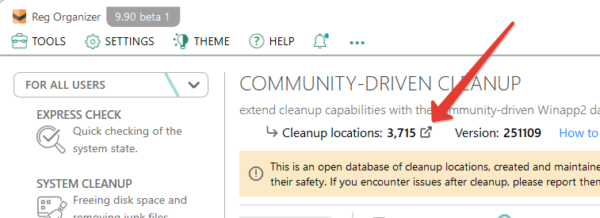
The Winapp2 database will open in text format. You can familiarize yourself with the syntax and format of this database here: https://github.com/MoscaDotTo/Winapp2/blob/master/README.md
However, if you want to add your own cleanup routines, it is better to create a new ini file rather than editing Winapp2.ini. This is because the database is updated automatically, so any changes made to that file will be overwritten. Therefore, to add your own routines, it is recommended to create a separate ini file, for example, named custom.ini in the folder %appdata%\ChemTable Software\Reg Organizer\CleanupDatabases and make changes there. This way, they will not be lost.
How to enable even more cleanup routines: adding Winapp3.
Users who wish to experiment can enable an additional set of cleanup routines called Winapp3. It further expands the cleanup volume but contains dangerous and unpredictable sections. Cleaning sections from Winapp3 — which are located in categories starting with the word “Dangerous” — can even lead to a system crash. Use with extreme caution!
How to add your own program for Reg Organizer to clean
Add any program on your system for cleaning with Reg Organizer:
This guide explains the types of programs you can add for cleaning, how to add them, and provides technical details on the process, including file editing. If you are unfamiliar with editing configuration files, this guide may not be suitable for you. Below is a full list of covered topics:
- Programs you want to add must store data in these 2 ways
- Important information about creating INI files for applications
- Adding your own program to the INI file
- Identifying the location of application files
- Finding the location of application Registry keys
- File mask options when you choose files
- Registry mask options when choosing Registry keys
Note: The contents of this guide are aimed at advanced users and may require a certain level of technical knowledge.
Programs you want to add must store data in these 2 ways:
- Files:
Some programs store user data—such as search history, cache, or recent files—in specific files or folders. Reg Organizer can clean these programs by deleting these files.
Example:The Avant Web browser stores user data in .DAT files within its Application Data folder. - Registry:
Many programs store settings and user preferences (like URL history, save directories, recent files) in the Windows Registry. Reg Organizer can clean these programs by removing the relevant Registry keys.
Example:Adobe Creative Suite stores preferences in specific Registry keys.
Note: Some programs store information in both files and the Registry. Reg Organizer can clean both types of data.
Important information about editing or creating INI files for applications:
Before editing or creating an INI file, decide which file you need.
- To start from scratch and replace the default cleaning list within Reg Organizer, create a file named custom.ini.
- To add new applications to the existing cleaning list, create a file named custom.ini.
The examples in this guide are for reference only. Always verify the exact locations of data you intend to clean, as these may vary depending on your software installations.
Adding your own program to the INI file:
- Create or open the INI file (e.g., custom.ini) using a text editor like Notepad.
- Use the following entry structure as a template.
Example for a program storing data in files:
[*A-squared Free]

LangSecRef=3024

Detect=HKLM\Software\Emsi Software GmbH\a-squared Free

Default=True

FileKey1=%userprofile%\My Documents\a-squared\Reports|*.*

FileKey2=%programfiles%\a-squared Free\Logs|*.*
Understanding the INI File Structure:
- First Line (Application Name): The application name is enclosed in square brackets. Adding an asterisk [*Application Name] is recommended to easily distinguish your custom entries from default ones. The asterisk has no functional effect.
- Second Line (LangSecRef): This number defines the category under which the application will appear in Reg Organizer’s cleaning list.
- 3021 = Applications
- 3022 = Internet
- 3023 = Multimedia
- 3024 = Utilities
- 3025 = Windows
- 3026 = Firefox/Mozilla
- 3027 = Opera
- 3028 = Safari
- 3029 = Google Chrome
- 3030 = Thunderbird
- 3031 = Windows Store
- 3032 = CCleaner Browser
- 3033 = Vivaldi
- 3034 = Brave
- 3035 = Opera GX
To create a new section header in the list (instead of an app), use Section=SectionName.
Example 1: LangSecRef=3024 (Lists the app under “Utilities”)
Example 2: Section=MorePrograms (Starts a new section named “MorePrograms”)
- Third Line (Detect): This line checks if the application is installed. Use one of these formats:
- Detect=[Registry Key Path] – Detects the program via a Registry key.
- DetectFile=[File Path] – Detects the program via a specific file (e.g., its executable).
- Fourth Line (Default): Specifies if the entry’s checkbox is selected (True) or cleared (False) by default in Reg Organizer.
- Subsequent Lines (FileKeyX / RegKeyX): Define the files or Registry keys to clean.
- For files: FileKeyX=[Path]|[File Mask]
- For Registry keys: RegKeyX=[Registry Key Path]
Example for a program storing data in the Registry:
[Adobe ImageReady CS]

LangSecRef=3021

Detect=HKCU\Software\Adobe\ImageReady 8.0

Default=True

RegKey1=HKCU\Software\Adobe\ImageReady 8.0\Preferences\URLHistory

RegKey2=HKCU\Software\Adobe\ImageReady 8.0\Preferences|SaveDir

RegKey3=HKCU\Software\Adobe\ImageReady 8.0\Preferences\RecentFiles
Note: Separate each complete application entry in the INI file with at least one blank line.
Identifying the Location of Application Files:
Application data files are typically located in one of these areas:
- The program’s installation folder.
- The %APPDATA% or %LOCALAPPDATA% folder, often within a subfolder named after the application or its developer.
Tip: To find an application’s installation folder, right-click its shortcut (e.g., on the Start Menu or Desktop), select Properties, and check the “Target” field.
Finding the Location of Application Registry Keys:
Application Registry keys are usually located under these hives:
- HKCU (HKEY_CURRENT_USER\Software\…) – for settings specific to the current user.
- HKLM (HKEY_LOCAL_MACHINE\Software\…) – for machine-wide settings.
Use the Windows Registry Editor (regedit) to navigate and locate the keys used by your program, often found under paths like Software\[Developer Name]\[Program Name].
File Mask Options:
When defining FileKey paths, you can use masks to specify which files to delete:
- | – The pipe symbol separates the path from the file mask.
- *.* – Deletes all files in the specified folder. Example: %ProgramFiles%\App\Cache|*.*
- RECURSE – Deletes files in the specified folder and all its subfolders (the folders themselves remain). Example: %APPDATA%\App\Logs|*.*|RECURSE
- REMOVESELF – Deletes files in the folder and all its subfolders, then deletes the main folder itself. Example: %TEMP%\AppTemp|*.*|REMOVESELF
- *.<extension> – Deletes all files with a specific extension. Example: *.tmp
- You can also specify an exact filename: error.log
Registry Mask Options:
When defining RegKey paths:
- The pipe symbol | is used to separate the key path from a specific value name within that key, if you want to target only that value.
Example: HKCU\Software\MyApp\Settings|LastUsedPath – This would clean only the LastUsedPath value inside the Settings key, not the entire key.
Common Registry Hive Abbreviations:
- HKCU – HKEY_CURRENT_USER
- HKLM – HKEY_LOCAL_MACHINE
- HKU – HKEY_USERS
By following this guide, you can extend Reg Organizer’s cleaning capabilities to include virtually any application installed on your system.
Join the discussion
We encourage you to share your thoughts, technical questions, and ideas for the Community-Driven Cleanup tool.
To facilitate a structured discussion and allow you to connect with other advanced users, we have created a dedicated topic on our Community Forum.
This is the perfect place to:
- Ask detailed technical questions.
- Suggest new rules or criteria for the shared database.
- Discuss complex use cases and share your experience.
- Propose ideas for future improvements.
